Sale Console user guide
Issue tickets in four steps, then show your customers how to view them. Sign in with your authorised account, open the event, choose the seats and complete the order.
Four steps
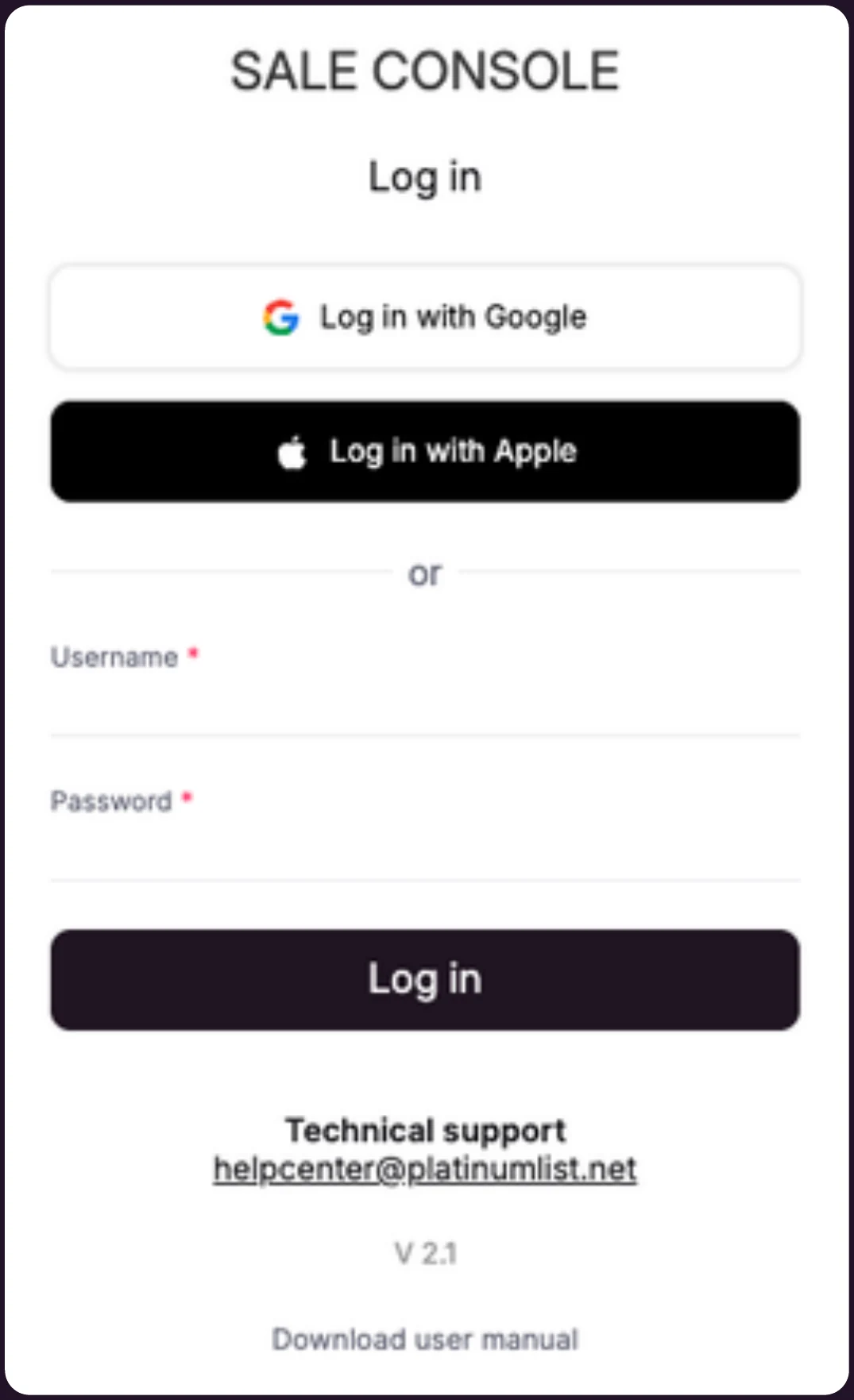
- Sign in. Sign in with your authorised account.
- Choose the event. Open the event and choose the ticket type.
- Choose the seats. Pick seats or quantities, then check out.
- Complete the order. Enter the customer's details, take payment and confirm.
1Sale Console · Step 1
Sign in with your authorised account
- Open saleconsole.platinumlist.net/auth
- Use the email address that has been given Sale Console access.
- Enter the verification code sent by text message to your registered mobile number.
- No text message? Press Resend Code and the code is sent to your email instead.
Important. Use only an account that has been given Sale Console access.
2Sale Console · Step 2
Choose the event and tickets
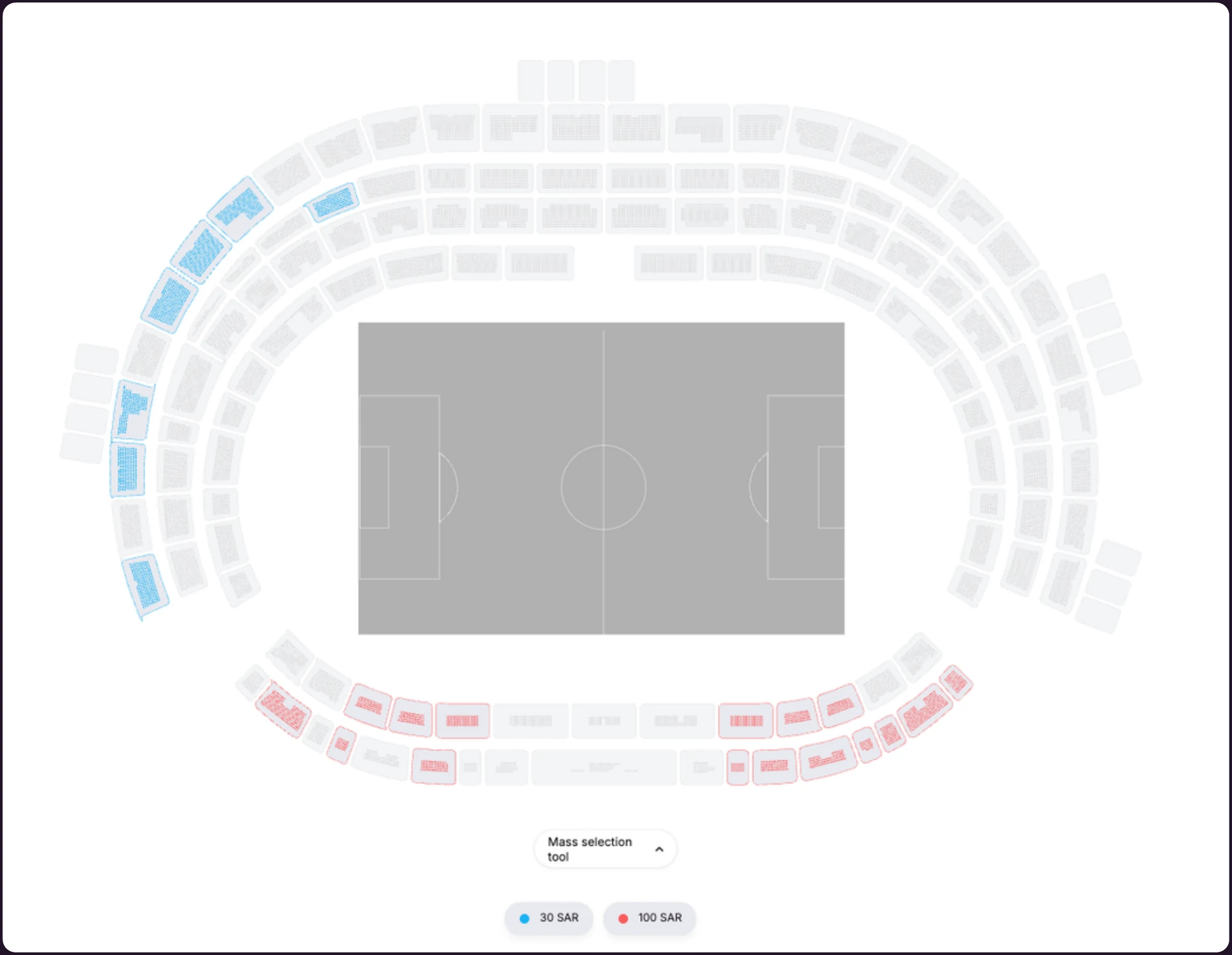
After signing in you will see every event your account has access to. If there is only one, the system may open it straight away.
Open the event
Choose tickets according to the event's setup: ticket categories, specific seats, tables or general admission.
Events with seating
Use the seat map to choose the category first, then the seats or tables.
Swipe sideways to see the full screen →
3Sale Console · Step 3
Choose the seats and go to checkout
Before you continue, check the quantity and total shown at the bottom of the screen.
Swipe sideways to see the full screen →
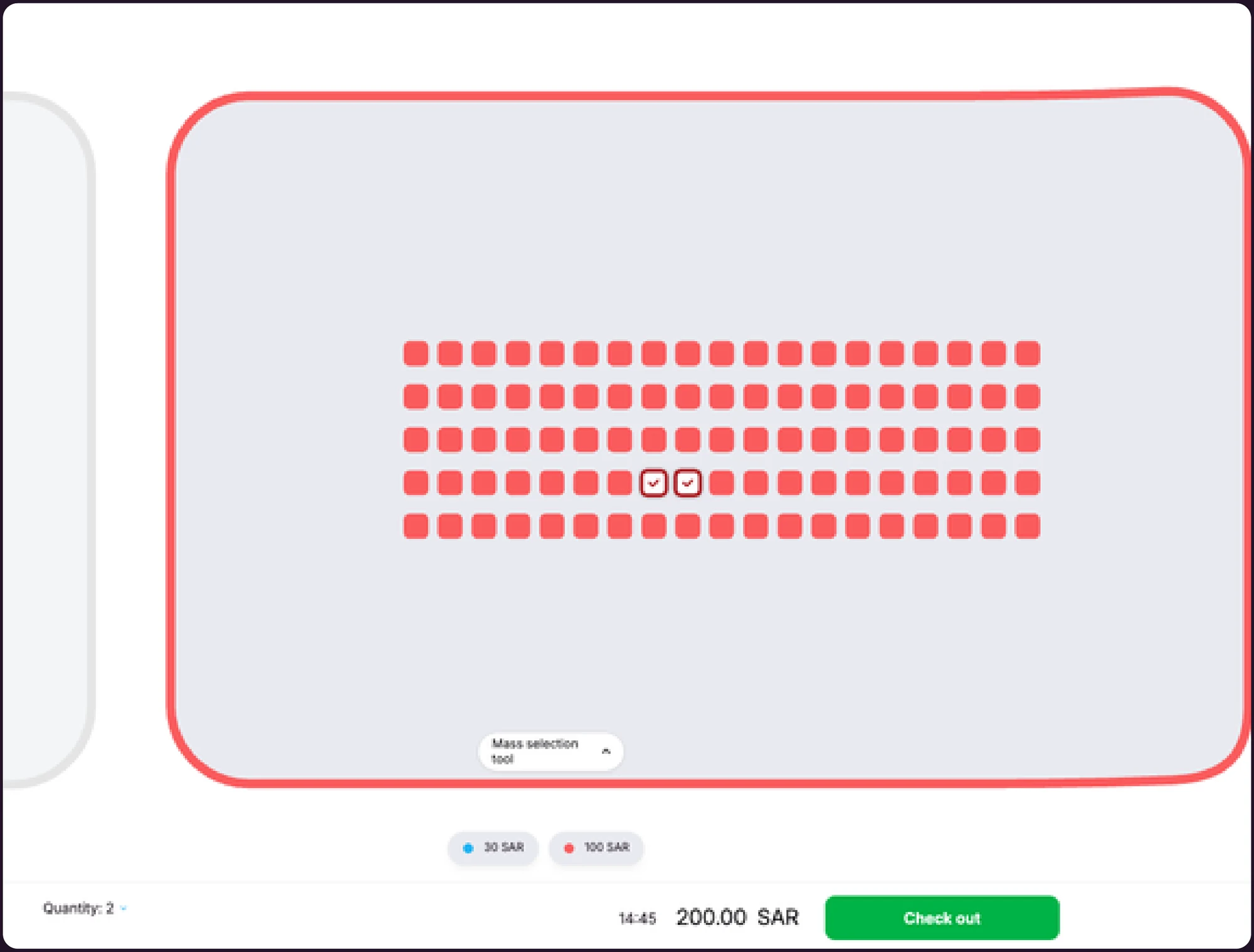
Click each seat
Pick seats one by one for small orders.
Mass Selection Tool
Select many seats at once.
Click Check Out
Check the quantity and total, then continue.
4Sale Console · Step 4
Enter the customer's details
Fill in the details of the customer who will receive the tickets, then check the order summary line by line.
Swipe sideways to see the full screen →
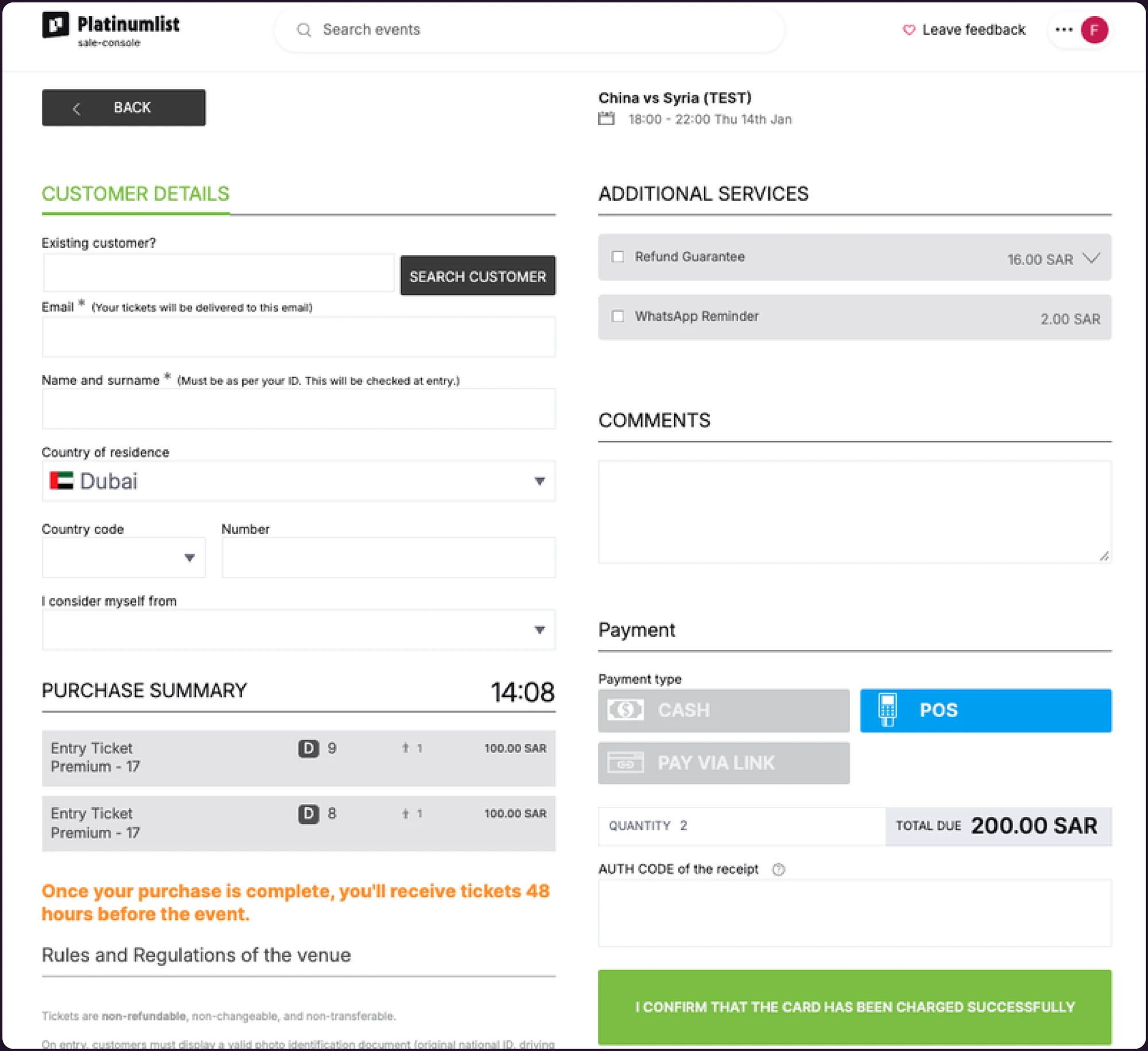
Customer Details
Enter the customer's email, full name and any other required details, and check them again.
Purchase Summary
Confirm the tickets, seats or categories, quantity and total.
Comments
Optional. Add a note if you need to.
4Sale Console · Step 4, continued
Take payment and confirm the order
Once you confirm, the customer receives their tickets straight away.
Choose the payment method
Choose the right payment method and fill in the payment details required.
You do this
Confirm the transaction
Check the customer's email and the order details one last time, then confirm.
You do this
The customer receives the tickets
A confirmation email is sent. The tickets also appear under My Tickets in the customer's Platinumlist account or app.
Automatic
Important. Always check the customer's email address and the order details before you confirm the transaction.
Part 2 · Share with your customer
Saudi Arabia · 9, 14 & 18 January 2027Your tickets live in the app
Your tickets are delivered to the Platinumlist app — there is no PDF. Your account is already set up: install the app, find the welcome email with your temporary password, sign in, and your tickets are there. About five minutes, start to finish.
Before you start
Your account is already made
No need to sign up. When your ticket was issued, we created a Platinumlist account on that email address and sent the login details there. Signing up again with another address only gives you an empty account.
There is no PDF ticket
Your ticket is a QR code inside the app, and it refreshes every two minutes — a screenshot or a printout will not scan at the gate. Bring the phone you installed the app on, and bring it charged.
Your ticket may not appear straight away
Tickets for these matches are released to the app closer to match day. An empty Tickets tab today is normal and does not mean anything has gone wrong. Install now, sign in once, and your ticket will arrive on its own.
Install today. Your ticket will find you.
1Step 1
Install the Platinumlist app
Choose the option that matches your phone. We have pre-selected the one that looks right for the device you are reading this on.
Download the app file (APK)
Google Play does not work in mainland China, so we host the app file here on this page. It is 131 MB — use Wi-Fi if you can, and give it a few minutes. If the download stops, start it again: it carries on from where it left off.
Download the app · 131 MB- Tap the button above and wait for the download to finish.
- Open the downloaded file — from the notification, or in Files → Downloads.
- If your phone warns you about “unknown sources” or “unknown apps”, tap Settings, switch on “Allow from this source”, then go back.
- Tap Install, then Open.
Only download the file from this page. Anything calling itself a Platinumlist app anywhere else is not ours.
Get it from AppGallery
On a Huawei phone, open AppGallery and search for Platinumlist. Tap Install, then Open.
Open AppGalleryGet it from Google Play
In Hong Kong, Google Play works as usual. Search for Platinumlist, tap Install, then Open.
Open Google PlayGet it from the App Store
The App Store works normally in China. Search for “Platinumlist: Events & Tickets”, tap Get, then Open.
Open the App Store2Step 2
Find the welcome email from Platinumlist
It comes from notifications@platinumlist.net to the address your ticket was issued to, with the subject “Welcome to Platinumlist, [your name]! Let's get started.” Under Your login details you will find the two things you need: your email and a temporary password.
Not in your inbox? Check spam or junk and search for “Platinumlist”. The email and password in the picture are examples — use the ones from your own email.
Words on this screen
- Your login details
- 你的登录信息
- 电子邮箱
- Temporary password
- 临时密码 —— 下一步要用
- How to find your tickets
- 如何找到门票

Steps 3 to 8 · inside the app
From the app icon to the turnstile
The app itself runs in English or Arabic, so the screen on your own phone will be the English one. Use the switch above any phone to read it in Chinese instead — and the key beside each screen gives you the English word you will actually be tapping.
3Step 3
Sign in with email — not Google or Apple
Open the app. When it asks you to sign in, skip Continue with Google and Continue with Apple. Type the email address from the welcome email into the Email field and tap Continue.
Use exactly the address from the email — your ticket is attached to it. A different address means an empty account.
Words on this screen
- Continue with Google
- 使用 Google 继续 —— 不要点
- Or continue with Email
- 或使用电子邮箱继续
- 电子邮箱 —— 在这里输入
- Continue
- 继续

4Step 4
Enter the temporary password
The app recognises your email and asks for a password. Type the temporary password from the email exactly as written — capitals count — and tap Continue. Skip Join now: your account already exists.
Lost the email? Tap Forgot password? on this screen, enter the same address, and we will send you a code to set a new password.
Words on this screen
- Welcome Back
- 欢迎回来
- Password
- 密码 —— 输入临时密码
- Forgot password?
- 忘记密码?
- Join now
- 立即注册 —— 不用点

5Step 5
Open the Tickets tab
It sits in the bar along the bottom of the screen — Discover, Calendar, Favourites, Tickets. Tap Tickets.
Words on this screen
- Discover
- 发现
- Calendar
- 日历
- Favourites
- 收藏
- Tickets
- 门票 — 点这里

6Step 6
Find your match under Upcoming
Every ticket you hold is listed here. Tap the match you are going to. If the list is empty, pull it down to refresh — and see the note above about release timing.
Words on this screen
- My Tickets
- 我的门票
- Upcoming
- 即将到来
- On sale
- 转售中
- Show QR
- 显示二维码

7Step 7
Tap Show QR at the gate
Hold the screen up to the scanner. One QR code per ticket — if you are bringing friends, swipe across to the next card and scan each person in turn. Turn your screen brightness up.
Words on this screen
- General Entry
- 普通入场
- Zone / Row and seat
- 区域 / 排号与座位
- Event starts soon
- 活动即将开始
- Transfer
- 转赠

8Step 8
Everything else is on the ticket
Tap the info icon for your order number, ticket number, the name on the ticket, gate opening time and kick-off.
Words on this screen
- Ticket info
- 票务信息
- Order number
- 订单号
- Gates open at
- 入场口开放时间
- Event starts at
- 开赛时间
- Valid until
- 有效期至

Watch it instead
The whole thing, filmed inside the app
Steps 5 to 8 — from the Tickets tab to the QR code — recorded on a real phone. The captions on this cut are Arabic, and a version with the new sign-in steps is on its way. The buttons sit in exactly the same places, so it is worth watching either way.
Hosted on this page rather than on a video platform, so it plays from mainland China without a VPN. It only downloads when you press play.
No PDF. No printout. Just your phone, charged.
Questions
If something does not look right
Check spam or junk first, and search your mailbox for “Platinumlist”. The email goes to the address your ticket was issued to — if you are not sure which one that is, ask the team who sold you the ticket. If you know the address, you can also open the app, enter it, and tap Forgot password? to get a code.
Type it exactly as it appears — capitals count, and a space at the start or end will break it. Copying and pasting is safest. If it still fails, tap Forgot password? on the sign-in screen and set a new one with the code we send.
No. Your account was created when your ticket was issued. Signing up with a different email gives you a new, empty account — your tickets stay on the original one.
Check three things, in this order. One: you signed in with the email address from the welcome email. Two: pull down on the Tickets screen to refresh. Three: tickets are released closer to match day, so being early is the most likely answer. Nothing is lost.
Android blocks app files from outside a store until you allow it. When the warning appears, tap Settings, switch on “Allow from this source”, then go back and tap Install again.
It will not work — the code refreshes every two minutes. Bring the phone you installed the app on, signed in, and charged.
They all sit in the same order. Swipe across the QR cards to move from one to the next, and scan each person in separately.
Not yet — the app runs in English or Arabic. This page carries the Chinese: there is a key to the words beside each screen, and every screen above can be switched to Chinese.
Connections between China and our servers can be slow. Give it longer than you would expect and use Wi-Fi where you can. Doing all of this at home a few days before the match, rather than at the gate, is time well spent.
Still stuck
Talk to a person
About your booking
Reply to the message you were sent about your booking, with your order number and a screenshot of what you are seeing. The team who sold you the ticket answers fastest on this.
About the app or your ticket
Write to our help centre with your order number. English or Arabic, any time — we read every message.